The right monitor setup isn't a single answer — it's a decision that changes based on what you do all day, how deep your desk is, and whether you want to fix a pain problem or add real screen real estate. Here's how to cut through the noise and choose what actually works for your work.
Single vs dual monitors: which home office setup fits your work
A single large monitor works better than most people expect, and a dual-monitor setup causes more neck problems than most people admit. The honest answer: dual monitors win when you genuinely reference two windows simultaneously; a single monitor wins when you switch windows sequentially and just want more space. The wrong layout — two monitors offset from center, or a giant 34-inch display on a 20-inch-deep desk — trades productivity for posture problems.
Per OSHA's computer-workstation guidance, ergonomic strain from poor workstation setup is one of the leading causes of musculoskeletal injuries for computer users, and proper workstation adjustment is the primary hazard control. That matters here because adding a second monitor doesn't automatically make your setup better — it can easily make it worse if placement is wrong.
| Work Type | Recommended Layout | Why It Works |
|---|---|---|
| Writers & editors | Single large (27–32") centered | Focus, no neck rotation, centered posture |
| Coders & analysts | Dual or single + portrait secondary | Code on primary, docs/logs on secondary |
| Spreadsheet-heavy | Dual matched monitors, side by side | Simultaneous reference without alt-tabbing |
| Creatives & designers | Dual (large primary + secondary for tools) | Canvas stays uncluttered, palettes offscreen |
| Small-desk users | Single ultrawide (34") or single 27" | Avoids forced neck rotation on tight surfaces |
The ergonomics baseline from OSHA for monitor height and posture
Before choosing how many screens you want, get the placement right — because a second monitor mounted at the wrong height will hurt you faster than no second monitor at all.
OSHA's eTools monitor guidance is the standard baseline: "Put monitor directly in front of you and at least 20 inches away. Place monitor so top line of screen is at or below eye level." That 20-inch minimum is non-negotiable — closer than that and you're straining your ciliary muscles and pulling your head forward. Too high is equally problematic; a screen mounted above eye level forces you to crane your neck upward for hours.
Two other OSHA requirements are often ignored: the monitor should sit perpendicular to any windows in the room (not facing them, not with them behind you) to reduce glare, and OSHA notes that a computer operator can remain in essentially the same posture for an entire shift — which is exactly why getting these measurements right at setup saves you from chronic neck and shoulder pain later.
Practical checklist for monitor height: - Sit naturally with your back supported - Look straight ahead — your gaze should land at or just above the top third of the screen - If you're looking at the middle of the screen or higher when looking straight ahead, lower the display - Arms should be at roughly 90 degrees at the elbow when typing — set desk and chair height first, then adjust monitor height to match
Pro Tip: Set your chair and keyboard height before you adjust your monitor. Most people do it backward — they position the screen first, then hunch over to reach the keyboard.
Why desk depth changes whether dual monitors feel comfortable
Desk depth is the variable most people ignore until they've already bought two monitors and a dual arm. The minimum ergonomic viewing distance from OSHA is 20 inches — that's the distance from your eyes to the screen face. On a standard 24-inch-deep desk, with your body sitting roughly 4–6 inches back from the desk edge and the monitor base taking another few inches, you're already cutting it close with a single 27-inch display.
Add a second monitor and the math gets worse. Two 24-inch monitors side by side span roughly 44 inches wide. On a desk that's only 24 inches deep, you can't push them back far enough without them hitting the wall, and you can't angle them without one of them falling outside your comfortable neck-rotation range.
OSHA's desk guidance specifically mentions that a corner desk configuration can provide additional space and depth for large monitors or multiple items — which is a practical recommendation for anyone planning a dual-monitor setup in a smaller room.
Desk depth thresholds to know: - Less than 24 inches deep: One monitor only — or an ultrawide pushed to the back edge. Dual monitors will be too close or force neck rotation. - 24–27 inches deep: Dual monitors workable, but monitor arms (which mount at the desk rear and allow push-back) are worth it here. - 28 inches or deeper: Dual monitors comfortable without arms; standing desk users should verify arm reach when the desk raises.
Watch Out: A dual-arm setup on a shallow desk can push monitors so close to the wall that you can't route cables without kinking them. Check wall clearance before you buy the arm.
Best monitor layout by job type: writers, coders, spreadsheet users, creatives, and small desks
Your workload — not personal preference — should drive the layout decision. Here's the breakdown by job type, including the ergonomic reasoning behind each recommendation.
| Job Type | Layout | Primary Monitor Size | Secondary | Ergonomic Rationale |
|---|---|---|---|---|
| Writer / editor | Single centered | 27–32" | None | Centered posture, zero neck rotation |
| Coder / analyst | Dual or + portrait | 27" landscape | 24" portrait | Code centered; docs in portrait, no switch |
| Spreadsheet user | Dual matched | 24–27" x2 | Reference screen | Side-by-side comparison, no alt-tab |
| Creative / designer | Dual large + secondary | 27–32" | 24–27" | Tools off canvas, color accuracy primary |
| Small desk (< 24" deep) | Single ultrawide | 34" ultrawide | None | Width without depth penalty |
Writers and editors: when one large screen beats two smaller ones
Writers who spend most of their day in one document or two browser tabs at most do not need a second monitor — they need a bigger single monitor centered at eye level.
A 27-inch or 32-inch display at 1440p (2560×1440), centered directly in front of you, gives you room for a full document on the left side and research or reference on the right within the same screen — no neck rotation required. Options like the Dell UltraSharp U2723QE (27", 4K) or the LG 32UN880-B (32", 4K, with USB-C) give you enough resolution to run two windows side by side at full reading size on a single panel.
The centering matters. OSHA's guidance is explicit: the monitor goes directly in front of you. Two monitors mean your primary display is offset from center, guaranteed. For writing and editing work where you're looking at one window 80% of the time, that offset creates a low-grade but constant neck lean you'll feel by the end of the week.
Coders and analysts: when dual monitors or a portrait screen help
Coding is one of the few use cases where a dual-monitor or portrait-secondary setup delivers a real, measurable workflow benefit — because coders genuinely reference two things at once: an editor and documentation, a terminal and a log file, a test runner and source code.
The recommended layout: primary 27-inch landscape monitor centered for the code editor; secondary monitor rotated to portrait (vertical) on the right side for documentation, Stack Overflow, API references, or log tails. Portrait orientation on a 24-inch display (which becomes roughly 19 inches wide by 25 inches tall in portrait) shows far more lines of code or log output without scrolling than the same monitor in landscape.
Keep the main coding window on the centered primary display — not the portrait screen. The primary display should be directly in front of you at the OSHA-specified eye level. The portrait secondary should sit immediately to your dominant-hand side, angled roughly 30–35 degrees inward so you're not fully turning your head to read it.
Pro Tip: If you only have one monitor and want to try portrait mode before buying a second, most monitors rotate freely on their factory stand. Try rotating your existing 24" or 27" display and use it portrait for a week — if you hate it, you haven't spent a dollar.
For analysts running dashboards, pivot tables alongside data sources, or SQL results alongside query editors, the same dual-landscape logic applies as spreadsheet users (see below).
Spreadsheet-heavy work: why side-by-side beats constant window switching
If your work involves comparing two spreadsheets, referencing a dashboard while updating a model, or watching a report populate as you edit source data, dual monitors eliminate a workflow bottleneck that alt-tabbing never fully solves.
The optimal layout: matched monitors (same make, model, and resolution) side by side. Matching matters because mismatched color profiles and different brightness levels create visual fatigue when your eyes cross between screens constantly. Put the active spreadsheet on the primary center-left display, and the reference sheet or source data on the secondary right display.
Example: You're building a Q2 budget model in Excel on the left screen. The prior-year actuals spreadsheet sits open and static on the right. You can read across both without switching windows, copy values by glancing right, and keep your place in both documents simultaneously. That's not convenience — it's a meaningful reduction in cognitive switching cost.
Two matched 24-inch FHD monitors work fine for this, but two 27-inch QHD monitors give you enough horizontal resolution that column headers stay readable without zooming. Consider the Dell SE2722H (27") or the LG 27QN600-B (27", QHD) as affordable matched-pair options.
Creatives and content teams: when a second screen is worth the clutter
Designers, photo editors, and video editors benefit from dual monitors when the secondary screen genuinely offloads UI clutter from the primary canvas — not when it just becomes a dumping ground for Slack and email.
The correct workflow: primary large monitor (27–32", ideally with good color accuracy, Delta-E < 2 for serious photo or design work) shows the canvas, composition, or timeline. Secondary monitor shows the tools panel, layers palette, color graders, or preview window. In Adobe Premiere Pro, for example, you can push the Program Monitor to the secondary screen and keep the timeline and bins on primary — or vice versa depending on your eye dominance.
The trap: if the second monitor becomes where you put social media, notifications, and web browsing while you work, you've bought a distraction, not a tool. Be deliberate about what lives where before you set it up.
Color-sensitive work (photography, print design) should prioritize display color accuracy on the primary monitor over screen count. One factory-calibrated 32-inch display beats two mismatched panels for color-critical editing.
Small-desk users: when a single ultrawide or one monitor is the smarter buy
If your desk is under 24 inches deep, or if you're working in a spare bedroom or corner nook where the desk width is also limited, a dual-monitor setup will either crowd your viewing distance below the safe 20-inch minimum or force enough neck rotation to cause problems.
The right call in tight spaces: a 34-inch ultrawide monitor (21:9 aspect ratio) gives you roughly the horizontal width of two 21-inch displays in a single panel, with no gap in the middle, no mismatched bezels, and a fully centered primary display. The LG 34WP65C-B (34" curved ultrawide) or the Dell U3423WE (34" ultrawide, USB-C hub) are popular US options for desk workers who want breadth without adding depth.
Watch Out: An ultrawide monitor wider than 34 inches (38", 40", 49") can create the same neck-rotation problem as two monitors if you're sitting too close. The 34-inch curved format is the sweet spot for desks under 28 inches deep.
Monitor arms vs stands: when the upgrade is actually worth it
A monitor arm is worth buying when it solves a real problem: your monitor can't reach the right height on its factory stand, you need to reclaim desk surface under the monitor, or you want push-back flexibility to hit that 20-inch minimum on a shallow desk. If none of those apply, a good fixed stand works fine.
For readers choosing between brands, the Ergotron LX Single Monitor Arm is the cleanest premium pick because it handles monitors up to 34 inches and 25 pounds, offers full tilt, swivel, and height adjustment, and its cable management channel keeps HDMI or DisplayPort and power cables bundled inside the arm rather than dangling. It mounts via a C-clamp or grommet — no drilling — and fits most desks up to 3.5 inches thick. If you want a budget stand that still gives you VESA flexibility and tidy routing, the Amazon Basics Premium Single Monitor Stand works with almost any LCD monitor up to 32 inches and up to 25 pounds, with built-in cable management and a detachable VESA plate. For a dual-screen home office, the HUANUO Dual Monitor Arm is the affordable path for two 27-inch displays when you want a shared base and a cleaner desk.
The most-cited arm in the mid-range US market is the Ergotron LX Single Monitor Arm. It handles monitors up to 34 inches and 25 pounds, offers full tilt, swivel, and height adjustment, and its cable management channel keeps HDMI or DisplayPort and power cables bundled inside the arm rather than dangling. It mounts via a C-clamp or grommet — no drilling — and fits most desks up to 3.5 inches thick.
Budget pick: the Amazon Basics Premium Single Monitor Stand "works with almost any LCD monitor up to 32 inches and up to 25 pounds" and includes built-in cable management. It uses a detachable VESA plate compatible with 75×75 mm and 100×100 mm patterns and is backed by an Amazon Basics limited 1-year warranty. It costs a fraction of the Ergotron and works for most standard desk setups — trade-off is less fine-tuned height adjustment and lower build quality.
For dual-monitor buyers: the HUANUO Dual Monitor Arm handles two monitors up to 27 inches each, supports both VESA 75×75 and 100×100, and includes a shared cable management channel. It's a workable budget dual arm, though heavier monitors near its upper weight limit can cause some droop over time.
VESA mount compatibility and load ratings to check before you buy
Before you order any arm or articulating stand, confirm two things: your monitor's VESA pattern and its weight.
VESA (Video Electronics Standards Association) mount patterns are the four-bolt grid on the back of the monitor. The two standard patterns for home office monitors are 75×75 mm (common on smaller or older displays) and 100×100 mm (most 24-inch and larger modern monitors). Your arm or stand must match the monitor's pattern exactly — a 100×100 arm won't attach to a 75×75 monitor without an adapter, and a cheap adapter can introduce wobble under a heavy display.
Weight is equally important. The Amazon Basics single monitor stand is rated to 25 pounds. Do not exceed that limit. Most 24-inch monitors weigh 8–12 pounds; most 27-inch monitors weigh 10–16 pounds; 32-inch displays can reach 18–22 pounds. Check your monitor's spec sheet before purchasing any arm rated under 20 pounds.
How to find your monitor's VESA pattern: check the spec sheet on the manufacturer's website under "mounting." The four bolt holes on the back of the monitor will also show you visually, but a ruler is faster than guessing.
Watch Out: Some monitors — particularly ultrawide curved displays — don't have VESA mounting holes at all, or have non-standard patterns. Verify before you buy an arm, not after.
Cable management and desk cleanup when you add an arm
One underrated benefit of a monitor arm is cable cleanup. Factory stands leave power cables, display cables (HDMI or DisplayPort), and USB cables flopping down the monitor's rear and across the desk surface. A quality arm routes all of those cables through an internal or external channel along the arm itself, terminating cleanly at the desk rear or cable box.
The Amazon Basics monitor stand includes cable management as a feature. The Ergotron LX routes cables internally through the arm column. On dual arms, route both monitors' cables — power and video — through the arm pole before mounting the monitors. Trying to add cables after the monitors are attached is a significant hassle.
Practical cable routing order when adding an arm: 1. Mount the arm to the desk (C-clamp or grommet) before attaching the monitor 2. Thread power cable and display cable through the arm's cable channel from the desk end 3. Attach the monitor to the VESA plate 4. Connect cables at the monitor end and at the desk/power end 5. Use small velcro cable ties at the elbow joints to prevent sag when you reposition the arm
A USB-C single-cable setup (one cable carries video, data, and power) dramatically simplifies this — which is one reason the dock-centered setup in the laptop section below is so appealing.
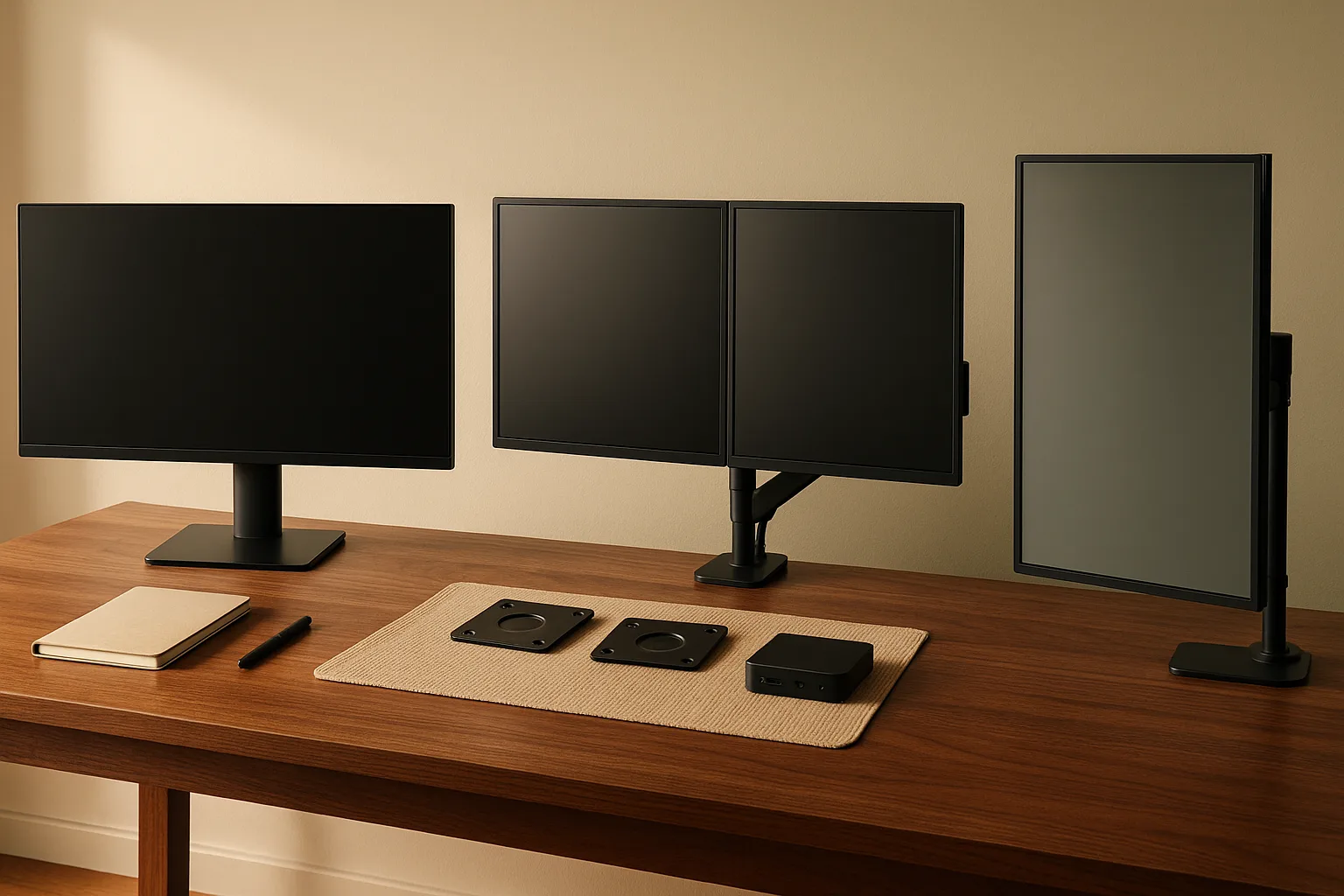
Single-arm vs dual-arm vs pole-mounted dual arm
| Arm Type | Best For | Footprint | Flexibility | Stability |
|---|---|---|---|---|
| Single arm | One monitor, max adjustment | Minimal (one clamp) | Highest | Excellent |
| Dual arm (shared base) | Two matched monitors | One clamp footprint | High | Good; watch weight limits |
| Pole-mounted dual arm | Mismatched monitors, standing desks | Grommet or clamp + pole | Highest per-arm | Excellent; each arm independent |
Single arms are the most reliable choice. They have less mechanical complexity, hold their position better over time, and cost less per arm than most dual-arm units.
Dual arms with a shared base (where both arms branch from one clamp) are convenient but create leverage issues if one monitor is significantly heavier than the other — the whole assembly can list to one side. They work best with two matched monitors of equal weight.
Pole-mounted dual arms (vertical pole clamped to the desk, with two independent arms attached at different heights) offer the most flexibility. You can set each arm at a different height, accommodate mismatched monitor sizes, and reposition each screen independently. They're the right call for standing desks where you need the arms to travel vertically with the desk surface.
Pro Tip: If you have a sit-stand desk, confirm that the arm's clamp thickness tolerance matches your desktop. Many desks have a thick frame at the rear where the clamp needs to attach. Ergotron LX fits desks up to 3.5 inches thick; verify before ordering.
Vertical monitor setup: when portrait mode helps and when it is just a novelty
Portrait mode — rotating a monitor 90 degrees so it's taller than it is wide — delivers real workflow value for specific tasks and none at all for others. The honest answer to "are vertical monitors good for coding?" is: yes, as a secondary monitor for documentation and logs, not as your primary coding display.
A portrait-ready monitor or arm is easiest to buy when you plan for it up front. A monitor that pivots on its factory stand, such as the Dell UltraSharp U2723QE, or an arm that supports rotation, such as the Ergotron LX Single Monitor Arm, keeps the transition simple if you want to test portrait mode before committing to a second display.
Best tasks for a vertical screen: code, documents, logs, and long pages
A standard 24-inch monitor in portrait orientation is roughly 19 inches wide and 25 inches tall — showing nearly twice the vertical content of the same monitor in landscape. That directly reduces scrolling for:
- Long code files: See 80–100 lines of code without scrolling instead of 40–50 in landscape
- Terminal and log output: Monitor log streams or test output with far more context visible at once
- API and technical documentation: Read reference docs like a page in a book — top to bottom, without constantly scrolling back up to check syntax
- Long-form articles or PDFs: Proofreaders, researchers, and editors who review long documents find portrait orientation dramatically reduces the read-scroll-read rhythm
- Email and chat: A portrait screen for communication tools (Slack, email) keeps them out of the primary work view without hiding them entirely
The key constraint: portrait mode works best as a secondary display, not as your primary. Most software UIs — browsers, IDEs, productivity apps — are designed for landscape. Running your main workscreen in portrait forces constant horizontal scrolling for wide content.
For a vertical monitor setup, you need either a monitor that physically pivots on its factory stand (look for "pivot" in the specs) or a monitor arm that supports portrait rotation. Most articulating arms — including the Ergotron LX and HUANUO dual arm — support 90-degree pivot.
When a vertical monitor becomes awkward or inefficient
Portrait mode hurts you in two scenarios: when the monitor is too high, and when you're using it for the wrong content.
Height problem: rotating a 27-inch monitor to portrait creates a display that's over 24 inches tall. If the center of that screen is at eye level per OSHA guidance, the top of the display is well above your head — which means you'll be tilting your neck upward to read content in the upper half. On a 24-inch monitor in portrait, this is manageable. On a 27-inch or larger display in portrait, the top of screen becomes uncomfortably high unless the arm is set very low or the desk is high.
Content problem: video, spreadsheets, wide dashboards, and any app with a horizontal toolbar (Photoshop, Premiere, most browser UIs) are actively worse in portrait. A video playing in portrait on a landscape-optimized file is letterboxed into a thin strip. A spreadsheet with 20 columns loses most of them off the right edge.
Do not buy a vertical monitor because it looks impressive in a YouTube setup tour. Buy one if you spend more than two hours a day in a long-document or log-review workflow and have a desk deep enough to support the secondary display without crowding.
Watch Out: If your desk is under 24 inches deep, adding a portrait secondary often forces the primary monitor closer than 20 inches — which violates OSHA's minimum viewing distance and causes eye strain.
Laptop-plus-monitor remote work setups with a USB-C dock
If you work on a company laptop that travels between the office and home, or you use your personal laptop both at a desk and on the go, the key to a comfortable home office setup is making the transition seamless. A USB-C dock solves this cleanly — you connect one cable when you sit down, and you disconnect one cable when you leave. Everything else stays on the desk.
A dock-centered desk works best when the laptop stays closed or off to the side and the external monitor becomes the main display. If you want a single product to anchor that setup, the CalDigit TS4 Thunderbolt 4 Dock is the premium recommendation because it drives up to three 4K displays and delivers 98W laptop charging, while the Anker 565 USB-C Hub is a lower-cost option for users who need one 4K display output plus USB-A ports and ethernet.
How a USB-C dock simplifies switching between desk mode and mobile mode
A USB-C dock (also called a Thunderbolt dock if your laptop supports the Thunderbolt protocol) sits permanently on your desk connected to your monitor, keyboard, mouse, ethernet, and power supply. When you arrive at your desk, you plug one USB-C cable into your laptop. The dock handles the rest: the monitor powers on, the keyboard connects, ethernet is live, and your laptop begins charging. When you leave, you pull that one cable.
Connection diagram for a single-monitor dock setup: - Dock → Monitor: DisplayPort or HDMI out from dock to monitor input - Dock → Power: Standard power brick to wall outlet; dock charges laptop via USB-C power delivery - Dock → Ethernet: RJ45 from dock to router or wall port - Dock → Keyboard/Mouse: USB-A ports on dock - Dock → Laptop: One USB-C cable carries power + video + data simultaneously
For remote workers who need dual-monitor output, confirm the dock's spec sheet lists two independent display outputs (not all docks drive two monitors simultaneously at full resolution). The CalDigit TS4 Thunderbolt 4 Dock drives up to three 4K displays and delivers 98W laptop charging — a top-of-range option. The Anker 565 USB-C Hub (10-in-1) is a more affordable entry point for users who need one 4K display output plus USB-A ports and ethernet.
Pro Tip: Mac users with M-series chips should verify dock compatibility carefully. Some older USB-C docks don't negotiate display signals correctly with Apple Silicon. Look for docks specifically listed as Apple Silicon compatible or Thunderbolt 4 certified.
What to buy first: dock, monitor, or arm
If budget requires prioritizing, here's the order of ergonomic and workflow impact:
1. External monitor (biggest impact first) If you're currently working on a 13–15 inch laptop screen, adding a single external monitor — even a basic 24-inch 1080p display — is the highest-value upgrade you can make. It reduces eye strain, improves posture (you can now raise the display to eye level and use a proper keyboard), and immediately gives you more working screen real estate. Budget: $150–$300 for a solid 24–27 inch display.
2. USB-C dock (second priority for laptop users) If you're plugging and unplugging four cables every morning and evening, a dock is worth it for time savings alone, beyond the ergonomic benefit. A reliable dock that handles display, power, and peripherals runs $60–$200 depending on port count and wattage.
3. Monitor arm (third priority) The arm becomes necessary when the stand can't reach the right height, or when desk surface space is the limiting factor. If the factory stand gets the monitor to the right height and you have enough desk space, skip the arm for now. If the stand is too short or too tall, or if the desk is cluttered because the stand base is large, add the arm.
Cost Snapshot: External monitor ($150–$350 for 27" QHD) → USB-C dock ($80–$200) → Monitor arm ($30–$180). Buy in that order unless you have a specific height or space problem the arm solves first.
Best home office monitor setup checklist before you click buy
Before ordering anything, confirm you've answered these questions:
- Desk depth: Is it 24 inches or deeper? If not, dual monitors are likely uncomfortable.
- Viewing distance: Can you position the screen at least 20 inches from your eyes with the current desk layout?
- VESA pattern: Does your existing monitor (or the one you're buying) have 75×75 or 100×100 mm mounting holes if you're buying an arm?
- Monitor weight: Is it under the arm or stand's rated load limit?
- Primary display centered: Is your main working screen directly in front of your chair, not offset to either side?
- Eye level: Does the top of the screen sit at or slightly below your eye level when seated normally?
- Glare source: Is the monitor perpendicular to your room's windows?
- Cable plan: Do you know how power, video, and USB cables will route before you mount the arm?
- Break habits: Are you building in regular movement breaks? No monitor setup eliminates the risk of sitting in one posture for an entire shift.
How to avoid neck rotation, glare, and too-high screens
The three most common ergonomic mistakes after setting up a home office monitor:
1. Primary display off center. Per OSHA's monitor placement guidance, the monitor goes directly in front of you — not offset to favor a dual setup. If you have two monitors and use one 80% of the time, that dominant monitor is your primary and it must be centered. The secondary goes to the side.
2. Screen mounted too high. The top line of the screen should be at or below eye level. A common mistake with monitor arms is raising the display too high — it feels like better visibility but forces constant upward neck tilt. Raise the arm until the top bezel is level with your eyes and stop there.
3. Glare from windows. OSHA recommends placing the monitor perpendicular to windows — meaning the window is to your left or right, not in front of or behind you. In front causes direct glare on the screen; behind causes reflected glare off the panel. A perpendicular arrangement eliminates both.
Posture checklist (run through this when you sit down for the first time in a new setup): - Feet flat on the floor or a footrest - Hips at or slightly above 90 degrees - Elbows at roughly 90 degrees when hands are on the keyboard - Shoulders relaxed, not raised - Eyes looking at or slightly downward toward the screen - Head and neck neutral — not craning forward or tilted up
Simple rules for knowing when to keep one monitor and when to expand
Stay single if: - You spend more than 70% of your day in one application - Your desk is under 24 inches deep - You switch between tasks sequentially (finish one, move to the next) - Your existing monitor is under 24 inches — in that case, upgrade the monitor size before adding a second
Go dual if: - You regularly need to reference two documents, applications, or data sources simultaneously - You do comparison work (two spreadsheets, before/after editing, code + documentation) - Your desk is 24 inches or deeper with wall clearance for a second display - Both monitors can be positioned with your primary centered in front of you
Consider an ultrawide instead of dual if: - You want the breadth of two screens but have a shallow desk or dislike the gap between panels - You do video editing or gaming alongside work (ultrawides handle mixed use better) - You want a single, centered display with maximum screen real estate
Home office monitor setup FAQs
Do monitor arms actually help with neck pain?
They can — but only if the arm solves the actual problem. A monitor arm that places the screen at the correct height (top of screen at or below eye level), at the correct distance (at least 20 inches away per OSHA guidelines), and directly centered in front of you will reduce the postural strain that causes neck pain. An arm that just repositions the same incorrect height or offset placement does nothing ergonomically useful.
The practical benefit: most factory stands are either too short for tall users or can't be adjusted finely enough. A quality arm like the Ergotron LX offers several inches of height travel and full tilt, letting you dial in the exact position that fits your seated height. That flexibility is the real value, not the arm itself.
One important check: confirm the arm's rated load before mounting your monitor. Exceeding the weight limit causes slow drift — the arm gradually sinks under load — which means your screen height changes throughout the day.
How deep should a desk be for dual monitors?
24 inches is the practical minimum, and 28 inches or deeper is comfortable. OSHA's monitor guidance specifies at least 20 inches of viewing distance, and with a dual-monitor setup, you need room to push both displays back far enough to meet that threshold while keeping them within comfortable neck-rotation range.
On a 24-inch-deep desk, monitor arms that clamp at the rear edge can push screens back toward the wall, recovering a few inches of distance. OSHA's desk guidance also notes that a corner desk configuration provides additional depth — worth considering if you're setting up a permanent dual-monitor workstation in a small room.
Is a dual monitor setup better than a single monitor?
It depends entirely on whether your work involves simultaneous reference of two windows or sequential task-switching. Dual monitors win when you genuinely need two applications visible at the same time — comparing spreadsheets, coding alongside documentation, monitoring dashboards while updating reports. A single large monitor (27–32 inches) wins when you work primarily in one application and the second monitor would just collect notifications and distractions.
The one-sentence rule: if you catch yourself constantly dragging windows back and forth between monitors to find the one you need, you'd be better served by one larger, higher-resolution display.
Are vertical monitors good for coding?
Yes — as a secondary monitor for documentation, logs, and reference material, not as your primary coding display. Portrait orientation shows significantly more vertical content without scrolling, which is directly useful for reviewing long code files, watching log output, and reading API docs. Most IDEs and code editors handle portrait display well on a secondary screen.
The no-when: don't use portrait as your primary coding monitor. Most IDE toolbars, split-pane layouts, and side-by-side diff views are built for landscape. Don't rotate a monitor to portrait if it's larger than 24 inches and you can't position the arm low enough to keep the top of the display at eye level.
Is a monitor arm worth it for a home office?
Yes, with conditions. A monitor arm delivers its value when it solves a specific problem: your factory stand can't reach the correct height, you need to reclaim the desk surface under the monitor base, or your desk depth requires pushing the screen further back than a fixed stand allows.
Per OSHA's ergonomic guidance, the goal is proper workstation adjustment that supports neutral posture — and a monitor arm is one tool for achieving that, not a stand-alone fix. If your current stand already positions the screen at the right height and distance and the desktop isn't cramped, a $150 arm adds convenience but not ergonomic improvement.
If you decide to buy one: confirm VESA compatibility (75×75 or 100×100 mm), verify the arm's load rating against your monitor's weight, and route cables before mounting the display. The Ergotron LX is the most consistently recommended option in the $100–$180 range. The Amazon Basics Premium Single Monitor Stand is a legitimate budget alternative for monitors up to 32 inches and 25 pounds.
Sources & References
- OSHA Computer Workstations Overview
- OSHA eTools: Computer Workstations — Monitors
- OSHA eTools: Computer Workstations — Desks
- OSHA eTools: Computer Workstations — Additional Information
- Amazon Basics Premium Single Monitor Stand (B00MIBN16O)
- Amazon Basics Premium Single Monitor Stand (B07QNY2G4T)
- Ergotron LX Single Monitor Arm
- HUANUO Dual Monitor Arm
- CalDigit TS4 Thunderbolt 4 Dock
- Anker 565 USB-C Hub
Keywords: OSHA computer workstation guidance, VESA 75x75, VESA 100x100, Ergotron LX, Amazon Basics Premium Single Monitor Stand, HUANUO dual monitor arm, monitor load rating, desk depth, portrait mode, ultrawide monitor, laptop dock, USB-C dock, display alignment, ergonomic neutral posture