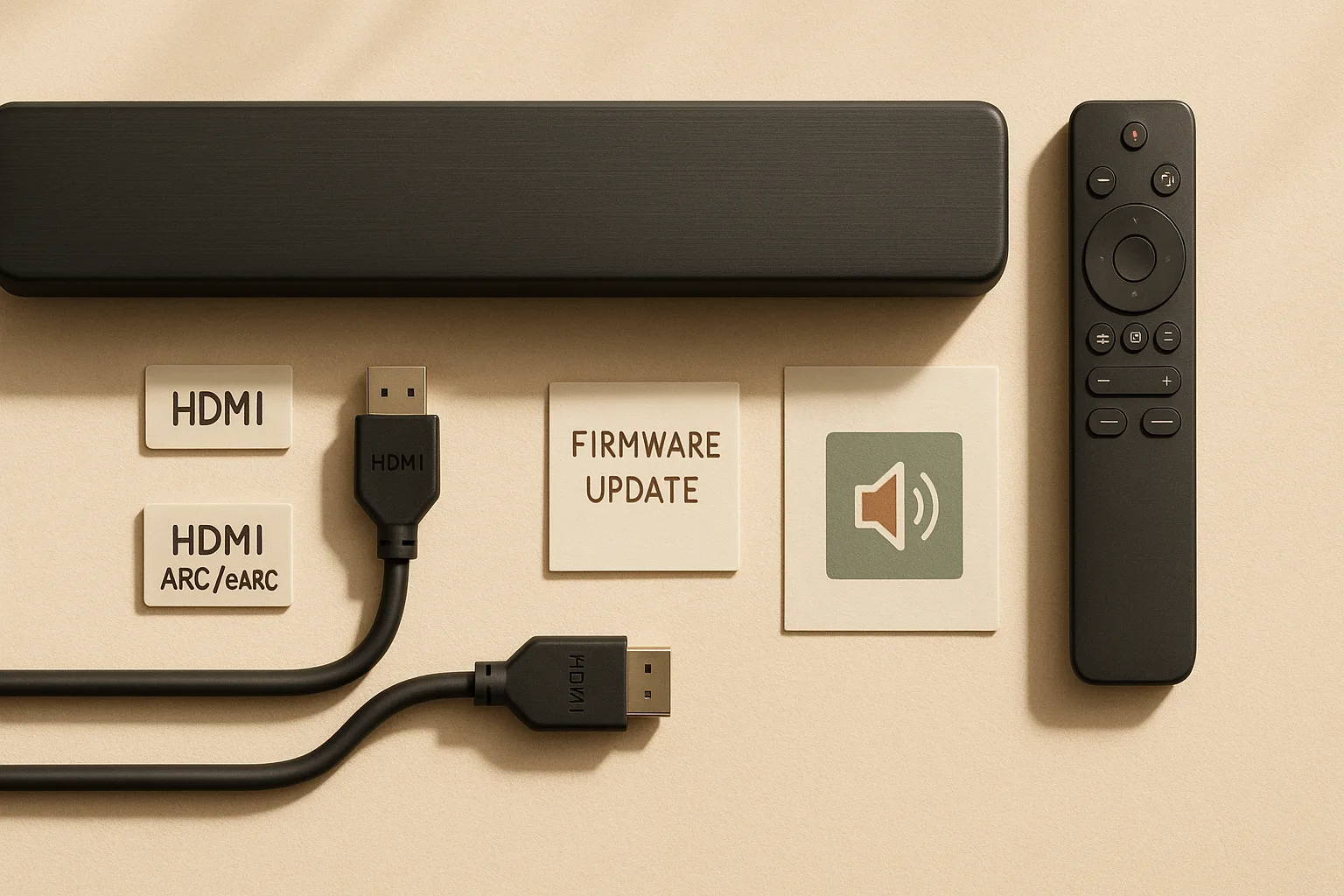
Most TV audio delay problems have nothing to do with a defective soundbar. The real culprit is almost always somewhere in the HDMI ARC/eARC chain — the cable, the port assignment, a firmware mismatch, or a TV audio setting that's adding buffering. Fix those first, in order, and you'll clear the lip-sync issue in the majority of cases without touching the soundbar itself.
Quick fix for TV audio delay with a soundbar
The fastest path to diagnosing soundbar lag is a short checklist you can run in under five minutes before changing any settings.
QuickFix Checklist:
- Verify the HDMI port: Your soundbar must plug into the port labeled ARC or eARC on both the TV and the soundbar — not a standard HDMI input. Sonos confirms the Arc must connect to the TV's HDMI-ARC or HDMI-eARC port specifically; a regular HDMI port simply won't return audio.
- Enable HDMI-CEC on the TV: This setting (often called Anynet+, Simplink, or BRAVIA Sync depending on brand) is required for volume and playback control over ARC.
- Power-cycle everything: Unplug the TV, soundbar, and any streaming device from the wall. Wait 60 seconds. Plug the TV back in first, then the soundbar, then the source device.
- Test one app only: Open a single streaming app on the TV's built-in interface. If the delay disappears, your external streamer was the problem — not the soundbar.
- Switch Digital Output Audio Format to PCM: On most TVs, go to Settings → Sound → Audio Output → Digital Output Audio Format and select PCM as a quick test. This removes codec conversion steps that sometimes introduce buffering.
One-sentence diagnostic summary: If the delay is present on all apps and all inputs, the problem is the HDMI ARC/eARC chain or a firmware bug; if it only appears on one app or one source device, the TV or that specific device is the actual culprit.
If you're in the market for a soundbar that handles ARC/eARC reliably out of the box, the Sonos Arc is consistently the clearest reference point in this category — its setup flow explicitly surfaces every ARC and CEC setting that trips people up.
What usually causes soundbar lip sync delay: ARC, eARC, firmware, or the source device
Lip-sync delay — what engineers call AV-sync error — isn't a soundbar defect as often as support forums suggest. RTINGS defines it as positive error when audio trails video and negative error when audio leads video, and it measures this as a system-level behavior across the entire playback chain, not just the speaker.
Most Likely Causes (ordered by frequency):
- Wrong HDMI port selected — soundbar plugged into a non-ARC port on the TV
- HDMI-CEC disabled — blocks handshaking and timing signals between devices
- Outdated firmware — TV or soundbar firmware with a known ARC timing bug
- TV picture processing active — motion smoothing and noise reduction add video latency that the soundbar doesn't know to compensate for
- Audio format mismatch — Auto or Dolby Digital Plus encoding adds buffering that PCM doesn't
- App-specific encoding issue — one streaming app outputs a different audio format than others, triggering different buffering behavior
- Physical cable fault — uncertified or damaged HDMI cable causing intermittent signal integrity problems
- Source device firmware or app bug — the Apple TV 4K, Roku, or Fire TV has its own audio timing stack that can fall out of sync
SystemChainDiagram:
Source device (Apple TV 4K / Roku / Fire TV / console)
                │
                ▼
            TV HDMI input
                │
                ▼
      TV ARC / eARC return-audio path
                │
                ▼
     Soundbar HDMI (ARC) / HDMI (eARC)
The chain looks like this: source device → TV → HDMI cable → soundbar. The HDMI ARC/eARC port is the return-audio path that sends sound back from the TV to the bar. A fault anywhere in that chain can manifest as delay at the soundbar's speakers. That's why blaming the soundbar first is almost always the wrong diagnostic move.
Why HDMI ARC and eARC handshake problems create delay or dropouts
Every time you power on your TV and soundbar, they negotiate a handshake over the HDMI ARC or eARC channel. That handshake confirms the connection, sets the audio format, and synchronizes timing signals. If it fails or completes partially, the audio can arrive late, cut out intermittently, or not appear at all.
eARC adds more bandwidth and better timing accuracy than standard ARC, but it also adds more handshake complexity. HDMI Licensing Administrator confirms that the Ultra High Speed HDMI Cable certification explicitly covers eARC — meaning the cable itself is part of what makes eARC handshaking reliable. Use a cable that isn't rated for eARC and you may get partial handshakes that produce exactly the kind of intermittent delay that's hard to reproduce on demand.
Watch Out: Intermittent dropouts — audio that cuts out for half a second every few minutes — are a red flag for HDMI handshaking instability, not a soundbar volume issue. If the dropout is consistent with channel changes or powering devices on and off, the cable or the ARC port is the most likely suspect before the soundbar.
How TV picture processing can make audio look late even when the soundbar is fine
Your TV's picture processing — motion interpolation, noise reduction, dynamic contrast adjustment — takes time. It adds latency to the video signal while the soundbar plays audio immediately on arrival. The result looks like the audio is early, or more commonly, that there's a mismatch between mouth movement and speech.
RTINGS' input lag methodology measures TVs with motion interpolation both on and off, because those settings materially change timing. The practical implication: if you turn on Game Mode (which disables most processing and minimizes input lag) and the lip-sync improves, your TV's picture processing was introducing the delay, not the soundbar.
TVProcessingSettings to check: Motion interpolation (called TruMotion on LG, Motion Rate on Samsung, MotionFlow on Sony) — turn it off or set it to minimum. Noise reduction — off. AI Picture / AI Sound — off during diagnosis. Dialogue Enhancement — off. These should all be disabled before you decide the soundbar needs adjustment.
Check the HDMI cable, ARC port, and input source first
The HDMI cable is the most underestimated variable in a soundbar delay diagnosis. A cable that works fine for picture can still fail for ARC audio return, particularly when eARC is involved.
HDMI Cable Checklist:
- Check the cable for visible kinks, bent pins, or tight bend angles near the connector
- Confirm the cable has a printed certification label — HDMI.org advises "Trust the cable with the label"
- Identify the cable's certification tier (more on this below)
- Try a different cable before changing any TV settings — this takes 30 seconds and eliminates a common cause immediately
- Avoid HDMI cables over 6 feet without active signal boosting if you're seeing intermittent issues
Port Selection Checklist:
- On the TV, use only the port physically labeled ARC or eARC — not HDMI 1, 2, or 3 unless one of those is additionally labeled ARC
- On the soundbar, use only the port labeled HDMI (ARC) or HDMI (eARC)
- If your TV has a single eARC port and other ARC ports, use the eARC port for the best reliability
- If the TV has neither ARC nor eARC, you'll need to use optical — but you lose Dolby Atmos and ARC-specific features
For a reliable certified cable, look at options like the Zeskit Ultra High Speed HDMI 2.1 Cable or similar products carrying the official Ultra High Speed HDMI certification label — they'll run $12–$25 for a 6-foot run and are worth every dollar when eARC is in play. If you want a stronger affiliate-ready option, the Monoprice Certified Ultra High Speed HDMI cable is a practical HDMI cable affiliate pick because the certification label makes troubleshooting faster and the eARC handshake is less likely to fall apart on longer runs.
CertifiedCable Note: HDMI.org describes High Speed HDMI Cable as supporting up to 10.2 Gbps and 4K@30Hz. Premium High Speed covers 4K@60Hz and HDR. Ultra High Speed is the only tier that explicitly covers eARC and the full HDMI 2.1 feature set. If your setup uses eARC or 4K/HDR at 60Hz or above, an Ultra High Speed certified cable isn't optional — it's part of the spec.
Use the correct HDMI ARC or eARC port on both devices
This is the single most common mistake in soundbar setups: the user plugs the soundbar into a convenient HDMI port on the TV rather than the one labeled ARC or eARC. Non-ARC ports do not support audio return — the TV has no path to send audio back to the soundbar over that connection.
PortSelectionStepCard:
- Look at the back of your TV and find the HDMI port labeled ARC or eARC (usually HDMI 2 or HDMI 3 — check your TV manual or the port label itself)
- Plug the HDMI cable into that port on the TV
- Plug the other end into the port on your soundbar labeled HDMI (ARC) or HDMI (eARC) — Sonos Arc labels this clearly
- Enable HDMI-CEC in your TV's settings (Samsung calls it Anynet+, LG calls it Simplink, Sony calls it BRAVIA Sync, Vizio calls it CEC)
- Power-cycle both devices after enabling CEC
Pro Tip: If you see the Sonos app's Now Playing screen show "Dolby Atmos" next to content playing from your Apple TV 4K, according to Sonos, the entire chain is passing the signal correctly — that's a useful confirmation that ARC handshaking succeeded.
When to replace an old HDMI cable with a certified Ultra High Speed cable
If your HDMI cable came with a TV or soundbar purchased before 2020, or if it has no certification label, replace it before spending an hour changing settings.
CableSpecComparison:
| Cable Tier | Typical HDMI Version Context | Max Bandwidth | ARC / eARC Support |
|---|---|---|---|
| HDMI 1.4 | Early 4K-era baseline | 10.2 Gbps | ARC only, no eARC |
| High Speed HDMI | Common standard cable tier | 10.2 Gbps | ARC only, no eARC |
| Ultra High Speed HDMI | HDMI 2.1 certified tier | 48 Gbps | Yes, including eARC |
HDMI.org's Ultra High Speed certification page explicitly lists eARC among supported features. If you're running eARC — which you should be, if your TV and soundbar both support it — a High Speed or even HDMI 1.4 cable may work intermittently but isn't certified for the job. The fix costs $15–$25 for a quality Ultra High Speed cable and eliminates a major variable from your troubleshooting.
Update TV, soundbar, and streaming device firmware
Firmware updates fix known ARC timing bugs, CEC handshaking failures, and audio format handling issues — and because the audio path is a chain, a bug in any one device (TV, soundbar, or source) can cause delay that looks like a hardware problem.
FirmwareUpdateChecklist:
- TV: Go to Settings → Support (or System) → Software Update → Update Now. Samsung, LG, Sony, and Vizio all include OTA updates in this general location, though exact menu names vary.
- Soundbar: For the Sonos Arc, updates happen automatically through the Sonos app — open the app, go to Settings → System → About My System to confirm the current version. Samsung soundbars (like the Q990C) update via SmartThings or the soundbar's own settings menu.
- Source device: On Apple TV 4K, go to Settings → System → Software Updates. On Roku, go to Settings → System → System Update. On Fire TV, go to Settings → My Fire TV → About → Check for Updates.
- Power-cycle after each update: Unplug the updated device from the wall for 60 seconds before reconnecting. Don't just use the remote power button — a full power cut clears the HDMI handshake state.
- Retest before moving on: If the delay was present before the update, retest with the same app and input after the power-cycle. A single firmware update has been known to fix persistent ARC lip-sync issues entirely.
Because Apple TV 4K, Sonos Arc, and Samsung TVs each maintain their own audio timing stack, a source-device firmware issue can manifest as delay at the soundbar even when the soundbar itself is functioning perfectly.
What to do if the delay started after a software update
If your lip-sync was fine yesterday and broken today, and you received an automatic update overnight, that update is the most likely cause. SMPTE's ST 2064-1 notes that "errors in audio to video timing relationships have become commonplace in the industry" — firmware-induced timing changes are a recognized category of the problem, not an edge case.
RollbackOrResetDecision:
- Wait for a patch first if the update was to your TV's OS and you find other users reporting the same issue (check AVS Forum or the manufacturer's support community within 24–48 hours — these threads appear fast).
- Factory reset only if the delay is present across all apps, all inputs, and after a confirmed power-cycle, and no patch is available within a reasonable window. A factory reset will revert the device to a clean configuration state, which sometimes clears software-introduced timing drift.
- Do not factory reset if the delay is isolated to one app or one input — that's a source isolation problem, not a corrupted device configuration.
Change TV audio settings: PCM, pass-through, Auto Lip Sync, and audio delay
TV audio settings are the highest-leverage knob after the physical setup is confirmed correct. The right setting depends on your specific TV, soundbar, and content type — and menu names are not consistent across brands.
TVSettingsMap:
| TV Brand | Where to Find It | Setting Name |
|---|---|---|
| Samsung | Settings → Sound → Expert Settings | Digital Output Audio Format |
| LG | Settings → Sound → Sound Out → Digital Sound Out | PCM / Auto / Pass-Through |
| Sony | Settings → Display & Sound → Audio output | Digital audio out |
| Vizio | Menu → Audio → Digital Audio Out | PCM / Dolby Digital / Auto |
Watch Out: Menu paths change with OS updates. If your TV's menu doesn't match the above exactly, search your TV's Settings for "audio output" or "digital out" — the function is always there, just sometimes buried differently.
Format comparison:
- PCM: Uncompressed stereo audio. Lowest buffering, least processing, most consistent lip-sync. Use this as your diagnostic baseline.
- Auto: The TV selects the format based on what the content carries. Can cause brief format-switching delays when changing sources or apps.
- Pass-through: The TV sends the audio stream directly to the soundbar without decoding. Required for Dolby Atmos on some setups. Can introduce buffering on TVs with slower ARC implementations.
- Dolby Digital: Compressed surround. More processing than PCM, more stable than Auto in most cases.
Set Digital Output Audio Format to Auto, Pass-through, or PCM
Start with PCM. If the delay disappears, PCM is your answer — the original Auto or Dolby Digital setting was adding format-conversion buffering. If PCM fixes the delay but you lose surround sound you want, try Dolby Digital next. If you need Atmos, try Pass-through last, because that's where format-handling varies most by TV/soundbar combination.
SettingsDecisionTree:
- Set to PCM → test → delay gone? Stop here for stereo content.
- Still delayed on PCM? The issue is upstream of the audio format — go back to cable/port/firmware checks.
- Want surround sound? Try Dolby Digital → test → delay acceptable? Use this setting.
- Want Dolby Atmos? Try Auto or Pass-through → test both → use whichever has less delay.
Watch Out: Brand menu names vary. What Samsung calls "Digital Output Audio Format" and what LG calls "Digital Sound Out" are the same underlying function. Don't let different labels convince you your TV lacks the option.
Turn on Auto Lip Sync or manual A/V sync only after the basics are correct
Auto Lip Sync is a correction layer, not a first fix. It works by having the TV and soundbar negotiate a timing offset — but if the underlying handshake is unstable, the negotiated offset changes unpredictably and the sync can be worse with Auto Lip Sync on than off.
AutoLipSyncNote: Enable Auto Lip Sync (found under Sound settings on most Samsung, LG, and Sony TVs) only after you've confirmed the correct HDMI port, a certified cable, and current firmware. At that point, it's a legitimate refinement tool.
ManualDelaySlider callout: If your TV offers a manual A/V sync slider (typically a range of -250ms to +250ms), use it only when the delay is stable and consistent — the same amount late every time, regardless of app or input. A variable or intermittent delay cannot be corrected with a static offset. Set the slider in 20ms increments, test with a talking-head scene (news or interview content), and stop when mouth movement and speech align.
Disable TV sound processing that can add latency
ProcessingOffChecklist: During diagnosis, disable every one of these on the TV:
- Sound mode — set to Standard or Movie; avoid AI Sound, Adaptive Sound, or Optimized modes
- Virtual surround / DTS Virtual:X / Dolby Atmos spatial processing — off during testing
- AI Sound / Intelligent Mode audio features — off
- Dialogue Enhancement / Clear Voice — off
- Equalizer presets — set to flat or off
- Volume leveling / Auto Volume — off
These features do useful things in normal viewing, but during diagnosis they add processing steps that can shift timing. Disable them all, test, and re-enable only the ones that don't reintroduce the delay.
Test one app, one input, and one source at a time
If you skip source isolation and jump straight to resetting devices, you'll likely reset a working soundbar and still have the problem — because the real cause is the Netflix app on your Roku, or the way your Samsung TV handles YouTube's audio stream.
SourceIsolationTestPlan:
- Built-in TV app test: Open Netflix (or any streaming app) directly on the TV's built-in interface with no external source device connected. Note whether delay is present.
- External streamer test: Connect your Apple TV 4K, Roku, or Fire TV Stick. Open the same app and the same title. Compare to step 1.
- Live input test: Switch to a live antenna or cable input. Live content has no buffering layer — if the delay disappears on live TV but exists on streaming, buffering in the app is contributing.
- Different app test: On whichever device you're testing, try a different streaming service — if delay appears on Netflix but not Disney+, the Netflix app or its audio format output is the issue.
- Game console test: If you have a PS5, Xbox Series X, or Switch connected, test with a game and with a streaming app on the console separately.
Compare built-in TV apps versus Apple TV 4K, Roku, Fire TV, or game console
Different source devices use different audio timing stacks. The Apple TV 4K is designed specifically for HDMI-connected home theater playback with Dolby Vision, HDR10+, and Spatial Audio — it handles audio timing differently than a Roku or a TV's built-in app.
SourceComparisonTable:
| Source Device | Audio Path | Formats Supported | Common Delay Cause |
|---|---|---|---|
| Built-in TV app | TV internal → ARC to soundbar | PCM, Dolby Digital, Atmos (TV-dependent) | TV firmware or format handling |
| Apple TV 4K | HDMI input → TV → ARC to soundbar | Dolby Atmos, Spatial Audio, PCM | TV's ARC re-encoding of Atmos |
| Roku / Fire TV | HDMI input → TV → ARC to soundbar | Dolby Digital, limited Atmos | App-specific format output |
| Game console | HDMI input → TV → ARC to soundbar | PCM, Dolby Digital | Console audio settings mismatch |
A delay that appears only when the Apple TV 4K is the source — but not on the TV's built-in apps — points to the TV's handling of audio from that HDMI input, not the soundbar. Check the TV's HDMI input audio settings for that specific input port.
Test TV speakers, optical audio, and HDMI soundbar paths separately
OutputPathIsolation sequence:
- TV speakers only: Disconnect the soundbar. Play content through the TV's built-in speakers. If audio is in sync with the TV's own speakers, the TV is outputting correctly. If it's out of sync even on TV speakers, the source device or app is the real culprit.
- Optical path (if available): Connect the soundbar via optical cable instead of HDMI. If the delay disappears, the HDMI ARC/eARC chain is the problem — go back to cable, port, and CEC checks.
- HDMI ARC/eARC path: Reconnect via HDMI ARC/eARC. Now you've isolated whether the delay is on the HDMI path specifically.
OpticalVsHDMI comparison: Optical is a useful diagnostic bypass, but it's not an upgrade. Consumer Reports identifies optical as the alternate for TVs that lack HDMI ARC/eARC — not as a preferred connection. Optical maxes out at Dolby Digital 5.1; it cannot carry Dolby Atmos, DTS:X, or lossless audio. Use it to isolate the HDMI chain, not as a permanent fix.
Power-cycle, reset, or factory reset only when the symptom fits
ResetDecisionMatrix:
| Symptom | Action | Time Cost |
|---|---|---|
| Delay started after a recent power outage or HDMI reconnect | Power-cycle: unplug from wall, wait 60 seconds, reconnect in order | 2 minutes |
| Delay is inconsistent, changes after switching inputs | Unplug all devices from the wall, wait 2 minutes, reconnect in order (TV → soundbar → source) | 5 minutes |
| Delay persists across all inputs and cables after firmware update | Factory reset the TV or soundbar (whichever was updated) | 15–30 minutes |
| Delay present from initial setup, never worked | Re-pair soundbar from scratch using the manufacturer's guided setup | 20–45 minutes |
Power-cycling is always the right first move. HDMI handshakes and sync state live in volatile memory — a full power cut clears them, and many intermittent delays resolve without any settings change at all.
When a full factory reset is worth the time
Factory reset the TV or soundbar when: repeated power-cycling hasn't helped, you've confirmed the correct cable and port, you've updated firmware, and the delay is still present across all inputs and apps. That combination indicates a corrupted configuration state, not a simple handshake glitch.
FactoryResetThreshold: If you've power-cycled three times, swapped the cable, confirmed the correct ARC port, updated firmware, and tested two or more source devices — and the delay is still consistent — a factory reset is justified.
Watch Out: A factory reset on a Sonos Arc requires full re-setup through the Sonos app. You'll re-enter your Wi-Fi credentials, re-add the soundbar to your system, and re-configure Trueplay tuning. Budget 20–30 minutes and have your Wi-Fi password and streaming app logins ready before starting.
When to call a pro for soundbar delay or HDMI failures
Most soundbar delay issues are solvable with the steps above. But some symptoms indicate problems that consumer-level troubleshooting can't fix.
When to Call a Pro: - The HDMI ARC/eARC port on your TV is physically damaged (bent pins, loose fit, intermittent connection when you move the cable) - Audio drops out randomly and unpredictably across all inputs, all cables, and after a factory reset — suggesting a hardware fault in the TV's ARC output circuit - The delay exists only in a specific AV receiver/surround configuration and disappears when you remove the receiver from the chain — indicating a receiver-specific timing or handshaking conflict that requires component-level diagnosis - You've completed all isolation steps and the delay is present only on one very specific combination of devices that otherwise work individually - The TV repeatedly fails to recognize the soundbar on power-on, requiring manual cycling every session
DIY vs Pro: Damaged HDMI ports, repeated handshaking failures, and AV receiver surround-config issues are the dividing line here. If the HDMI ARC/eARC jack is loose or bent, if the TV or soundbar loses sync every time you reconnect it, or if an AV receiver in the middle of the chain creates the problem, that is a service call rather than a settings tweak.
SMPTE's formal standards work on AV synchronization exists precisely because some lip-sync errors are systemic — they emerge from multi-device chains and aren't correctable by adjusting a single component. That's the threshold for professional calibration or component replacement.
DIY vs Pro: If you can reproduce the delay consistently and it responds to settings changes — even if you haven't found the right setting yet — that's a DIY problem. If the delay is intermittent, random, and immune to every settings change and cable swap, call a pro or contact the manufacturer directly for device-level service.
Red flags: intermittent dropouts, damaged ports, and receiver-specific lip sync problems
RedFlagChecklist:
- Audio drops out for 0.5–2 seconds at irregular intervals (handshaking instability, not delay)
- The HDMI connector wiggles when plugged into the TV port (physical port damage)
- Delay only appears when an AV receiver is in the chain between the TV and soundbar
- The soundbar loses its connection to the TV completely after the TV goes to standby
- The TV's HDMI ARC port produces signal on one cable but not another, even with both confirmed working on other devices
- Delay varies randomly — sometimes 100ms, sometimes 500ms — with no pattern tied to content type
Any of these symptoms warrants a service call or manufacturer warranty claim before you spend more time on settings. HDMI.org's certification guidance makes clear that eARC handshaking depends on physical signal integrity — a damaged port is outside the scope of software troubleshooting.
Home theater calibration checks that can reduce audio delay
After you've confirmed the correct cable, port, firmware, and audio format, perceived sync can still be affected by physical speaker placement and room acoustics. This is where calibration comes in.
Speaker distance settings in your soundbar's calibration tool directly affect the timing of audio relative to video. If your soundbar thinks it's 8 feet from the listening position but it's actually 4 feet, it's adding a compensating delay that shifts audio timing. Run the soundbar's built-in calibration (Sonos uses Trueplay; Samsung uses SpaceFit Sound; Sony uses 360 Reality Audio calibration) after completing all HDMI and firmware checks — not before.
SMPTE's synchronization standards work treats AV sync as sensitive enough to require formal measurement because it's an end-to-end behavior, not just a cable issue. That's the same reason professional home theater calibration — where a technician measures speaker distances, room reflections, and signal timing with a calibration microphone — can resolve sync issues that settings alone can't fix.
HomeTheaterCalibrationCallout: If you're building a serious home theater setup with a Samsung Q990C or similar flagship soundbar, professional home theater calibration from a CEDIA-certified installer typically runs $200–$500 and covers speaker distance measurement, room correction EQ, and AV sync verification with test signals — worth it if you've already invested $1,000+ in the audio chain and the timing still isn't right after DIY steps.
FAQ: TV audio delay and soundbar lip sync
Is optical audio more reliable than HDMI ARC or eARC?
Optical is sometimes more stable on older TVs with buggy ARC implementations, but "more reliable" depends on what you mean. Optical eliminates the HDMI handshake negotiation entirely — there's no CEC, no ARC protocol, just a direct digital audio signal. That simplicity can reduce certain types of intermittent dropout.
The tradeoff is real, though. Consumer Reports identifies optical as the alternate connection for TVs lacking HDMI ARC/eARC — not as the preferred path. Optical maxes out at Dolby Digital 5.1 and cannot carry Dolby Atmos, DTS:X, or lossless audio formats. If you use optical with a Sonos Arc or a Samsung Q990C, you're leaving the best audio formats on the table. Use optical as a diagnostic test to isolate the HDMI chain, then go back to HDMI ARC/eARC for normal use.
Why does lip sync get worse on Dolby Atmos or surround sound?
Dolby Atmos and Dolby Digital Plus carry more data than standard stereo PCM, and some TVs add a brief buffering step when decoding or passing through those formats to the soundbar. The Apple TV 4K is built for exactly this kind of HDMI-connected Dolby Atmos playback, but the TV itself can re-encode the stream before sending it over ARC, which is where the delay enters.
If Atmos content is consistently worse than stereo, test two things: first, switch Digital Output Audio Format to PCM (which strips Atmos but also removes the format-conversion step) — if sync improves, the TV's Atmos handling is the issue. Second, try Pass-through mode, which bypasses the TV's decoding entirely and lets the soundbar handle it. Whichever produces better sync with Atmos content is the right setting for your specific TV/soundbar combination.
Should I replace my soundbar or my TV if the delay never goes away?
Replace based on where the source isolation test points — not based on which device is newer or more expensive. If the delay disappears when you use TV speakers but returns the moment you add the soundbar (on both HDMI ARC and optical), the soundbar is likely faulty. If the delay is present on TV speakers too, the TV is the issue. If the delay only appears with one specific external source device, that device is the culprit.
Replacement or pro diagnosis is justified only after persistent delay remains after source isolation, cable verification, firmware updates, and TV-speaker and optical tests. SMPTE treats persistent lip-sync error as a formal AV synchronization problem that can persist across devices — meaning the right answer sometimes is replacing a component. The replacement threshold is persistent, repeatable delay that survives source isolation, cable verification, firmware updates, and both HDMI and optical path tests. At that point, professional diagnosis will tell you which device is actually faulty.
If the soundbar is confirmed faulty, the Sonos Arc and Samsung Q990C are the clearest reference points in the premium segment — both have strong ARC/eARC implementations and manufacturer support resources that make warranty claims straightforward.
Is ARC or eARC better for soundbar lip sync?
eARC is the better choice when both your TV and soundbar support it, because it carries more bandwidth and more precise timing than standard ARC. That said, a solid ARC implementation with a certified cable can still be cleaner than a flaky eARC chain on older firmware, so the practical answer is to use eARC when available and stable, then fall back to ARC only if the specific TV/soundbar pairing behaves better.
How do I know if the TV app is the problem?
Run the source isolation test in order: built-in TV app, then the same title on an external streamer, then live input. If the delay appears only on the TV app, the TV's internal app platform or firmware is the cause. If it appears only on the external streamer, that box or its HDMI input settings are the culprit. If it disappears on live TV but not on streaming, buffering in the app or the streaming device is part of the delay.
Sources & References
- Apple TV 4K — Apple — Product page confirming Dolby Vision, HDR10+, and Spatial Audio over HDMI-connected TV/home theater setups
- Set up your Sonos Arc — Sonos Support — Official setup guide confirming HDMI-ARC/eARC port requirements and CEC enablement
- Sonos Arc Product Support — Sonos app-guided setup and firmware update path for Arc
- HDMI Cable Types — HDMI.org — Official classification of High Speed, Premium High Speed, and Ultra High Speed HDMI cables
- Ultra High Speed HDMI Cable Certification — HDMI.org — Confirms eARC support under the Ultra High Speed certification program
- Premium High Speed HDMI Cable Certification — HDMI.org — Details on 4K/HDR cable certification and the "Trust the cable with the label" guidance
- TV Input Lag Testing Methodology — RTINGS — Explains how motion interpolation and Game Mode materially affect TV timing
- Soundbar AV Sync Research — RTINGS — Defines AV-sync error (positive = audio trails video, negative = audio leads video)
- SMPTE ST 2064-1: Audio/Video Synchronization — Industry standard confirming that "errors in audio to video timing relationships have become commonplace in the industry"
- SMPTE Motion Imaging Journal — Lip Sync — Peer-reviewed coverage of systemic AV sync issues in digital media
Keywords: HDMI ARC, HDMI eARC, Auto Lip Sync, Digital Output Audio Format, Pass-through, PCM, Dolby Digital, Apple TV 4K, Sonos Arc, Samsung Q990C, HDMI 2.1 certified cable, Ultra High Speed HDMI Cable, CEC (Consumer Electronics Control), AVS Forum